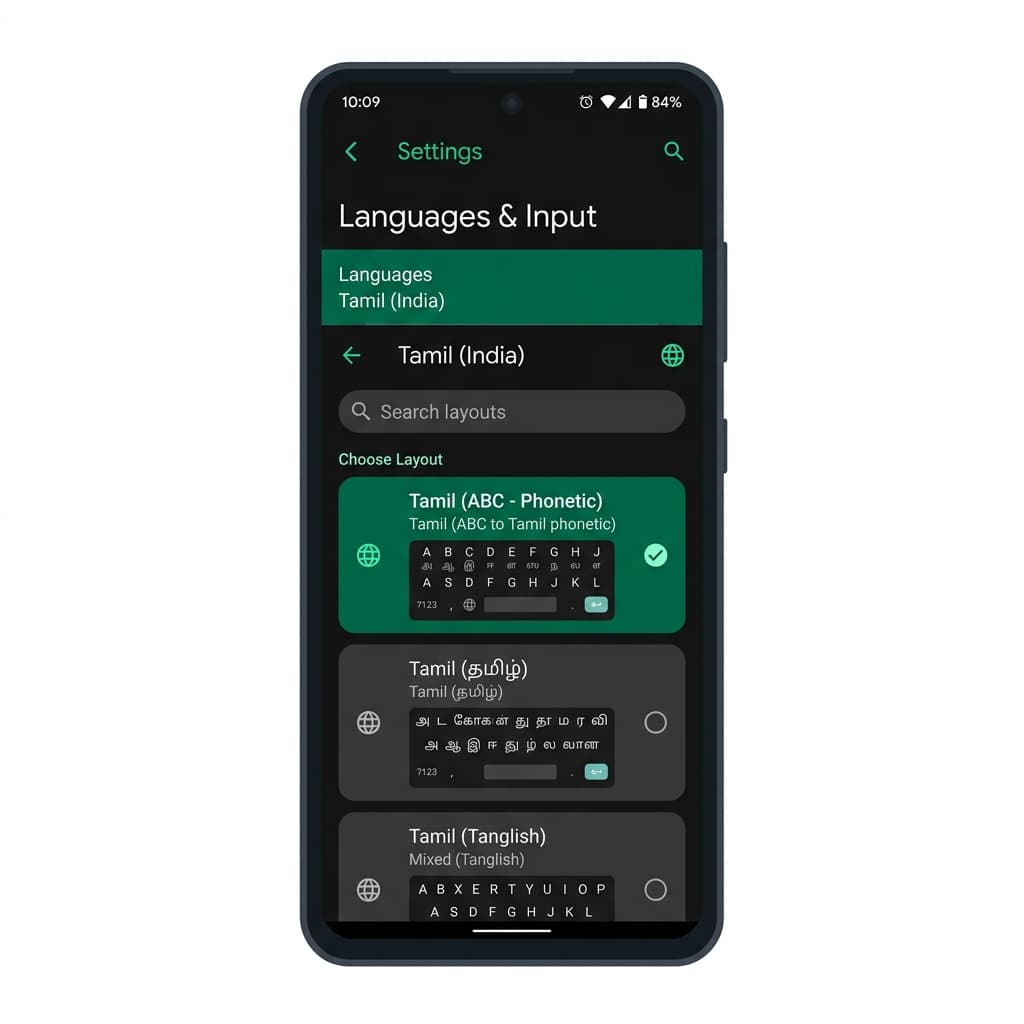
Tamil Input on Modern Android Smartphones
Android smartphones—including Samsung Galaxy, Google Pixel, Xiaomi, Redmi, OnePlus, Vivo, Oppo, and RealMe devices—feature powerful built-in multilingual support via Google's Gboard keyboard engine. By enabling Tamil on your Android device, you can type Tamil messages in WhatsApp, Instagram, Telegram, SMS, Gmail, and search queries across Google Chrome without needing suspicious third-party apps.
Google Gboard provides three primary input modes for Tamil:
- ABC → தமிழ் (Phonetic Transliteration): Type standard English letters on your QWERTY key layout, and Gboard instantly converts your typing into clear Tamil script with real-time word suggestions.
- Tamil (Native Script): Displays physical Tamil vowels, consonants, and diacritics directly on your touchscreen keys for direct typing.
- Handwriting Input: Allows you to draw Tamil script characters with your finger directly on the touch screen area.
Step-by-Step Android Gboard Configuration
- Open Keyboard in Any App: Open WhatsApp, Messages, or Chrome and tap any text entry box so your onscreen keyboard pops up.
- Access Gboard Settings: Tap the Gear icon (⚙️) on the top toolbar of your Gboard keyboard. Alternatively, go to your phone's main Settings > System > Languages & Input > On-screen keyboard > Gboard.
- Open Languages Menu: Tap Languages at the top of the Gboard settings list.
- Add Tamil Keyboard: Tap the blue Add keyboard button at the bottom of the screen.
- Search & Select Tamil: Type Tamil into the search icon, then select Tamil (India) or Tamil (Singapore / Sri Lanka).
- Select Layout Options: Swipe through the layout choices at the top and select ABC → தமிழ் (Phonetic). Tap Done at the bottom.
Android Keyboard Quick Actions Cheat Sheet
Use these shortcuts and gestures to switch input languages effortlessly while chatting:
| Gesture / Action | Result | Usage Context |
|---|---|---|
| Tap Globe Icon (🌐) | Switches layout instantly | Located left of Spacebar on Gboard |
| Press & Hold Spacebar | Opens Keyboard Picker menu | Allows selecting between Gboard, Samsung, or external keyboards |
| Tap Microphone Icon (🎙️) | Activates Tamil Voice Typing | Converts spoken Tamil speech into written text in real time |
Enabling Tamil Voice Typing on Android
Gboard features built-in Google Speech Recognition trained on millions of spoken Tamil phrases. To speak instead of typing:
- Ensure Gboard settings under Voice typing has Google Voice Typing enabled.
- In Gboard settings, open Languages > Voice languages and ensure தமிழ் (India) is selected.
- Tap the microphone icon on Gboard toolbar and speak clearly into your phone mic. Spoken words convert to Tamil text instantly.
Android System Setup vs. TamilKeyboard.in Web Tool
While Gboard is installed on most Android phones, older smartphones with limited storage or custom manufacturer keyboards (like older Samsung keyboards) may lack phonetic Tamil transliteration features.
In such cases, simply open TamilKeyboard.in in Chrome for Android. Type your Tamil message on our mobile-optimized website, click Copy Text, and paste it directly into WhatsApp, Telegram, or SMS.