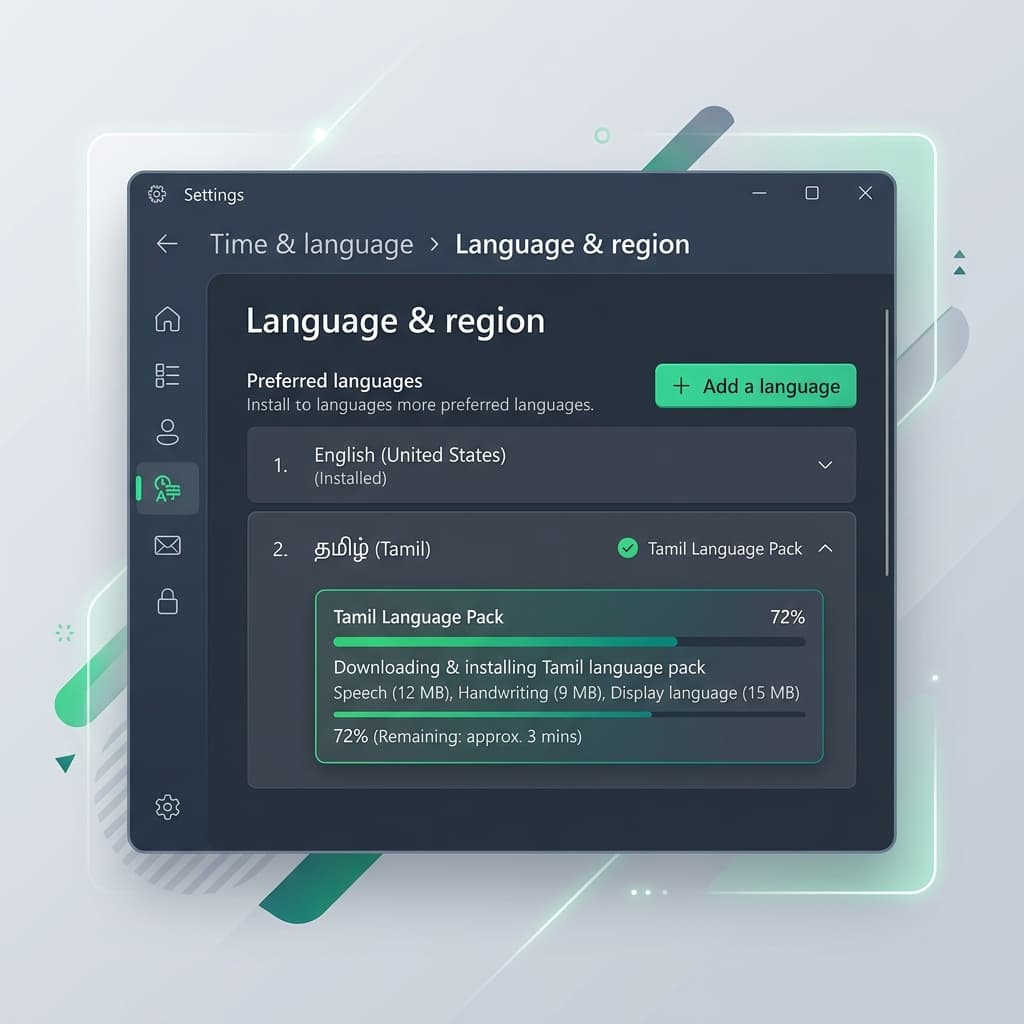
Understanding Windows 11 Native Tamil Support
Windows 11 includes full native operating system support for the Tamil language through Microsoft's Input Method Editor (IME). Unlike earlier desktop operating systems that required third-party software installation (such as NHM Writer, E-Kalappai, or Azhagi), Windows 11 allows you to type in Unicode Tamil script directly inside Microsoft Word, Excel, PowerPoint, Google Chrome, Notepad, and email clients without downloading unverified executables.
Microsoft provides three distinct keyboard layout engines for Tamil in Windows 11:
- Tamil Phonetic (Transliteration): Allows you to type using standard English letters on your QWERTY keyboard. Typing "vanakkam" automatically outputs "வணக்கம்" on screen.
- Tamil 99: The official standardized layout approved by the Tamil Nadu Government, placing vowels on the left hand and consonants on the right hand for high-speed touch typing.
- Tamil InScript: The standardized Indian government keyboard layout maintained by CDAC for multilingual Indian script input.
Step-by-Step Installation Walkthrough
- Open Windows Settings: Press Win + I on your physical keyboard or click the Start Menu and select Settings.
- Navigate to Language Options: From the left sidebar, select Time & Language, then click on Language & region in the right pane.
- Add Preferred Language: Click the green Add a language button under the Preferred languages section.
- Search & Select Tamil: In the search box, type Tamil. Select either Tamil (India) or Tamil (Sri Lanka) based on your location preferences.
- Install Language Pack: Ensure Language Pack and Basic Typing checkboxes are selected, then click Install. Allow Windows 11 1–2 minutes to finish background downloading.
- Choose Your Keyboard Layout: Click the three dots (•••) next to Tamil, select Language options, click Add a keyboard under Keyboards, and choose Tamil Phonetic or Tamil 99.
Windows 11 Keyboard Shortcuts Cheat Sheet
Once installed, use these essential hotkeys to seamlessly switch between English and Tamil while typing documents or chatting:
| Shortcut Key | Function / Action | User Context |
|---|---|---|
| Windows Key + Spacebar | Cycles through all installed input languages with visual HUD overlay | Recommended shortcut for quick switching |
| Left Alt + Shift | Toggles back and forth between active input languages | Legacy Windows shortcut layout |
| Windows Key + . (Period) | Opens Windows Emoji & Special Symbols panel (includes Tamil symbols) | Punctuation & currency symbols |
Troubleshooting Common Windows 11 Tamil Input Issues
Issue 1: Typed letters appear as blank boxes (☐☐☐) or question marks
Solution: This indicates the software you are using (e.g. older legacy text editors) lacks modern Unicode font mapping. Ensure your document font is set to a standard Tamil Unicode font such as Nirmala UI, Latha, or Noto Sans Tamil.
Issue 2: Keyboard layout switcher missing from Taskbar system tray
Solution: Go to Settings > Time & Language > Typing > Advanced keyboard settings, and check the option labeled Use the desktop language bar when it's available.
Native Windows IME vs. TamilKeyboard.in Online Tool
While installing native Windows 11 keyboards is great for permanent desktop work, configuring system settings requires administrator permissions and system-level installation time.
If you are using a workplace laptop, library computer, or shared PC where system settings are locked, you can use our zero-install online tool at TamilKeyboard.in. It offers instant English-to-Tamil phonetic transliteration in any web browser without modifying your Windows settings.