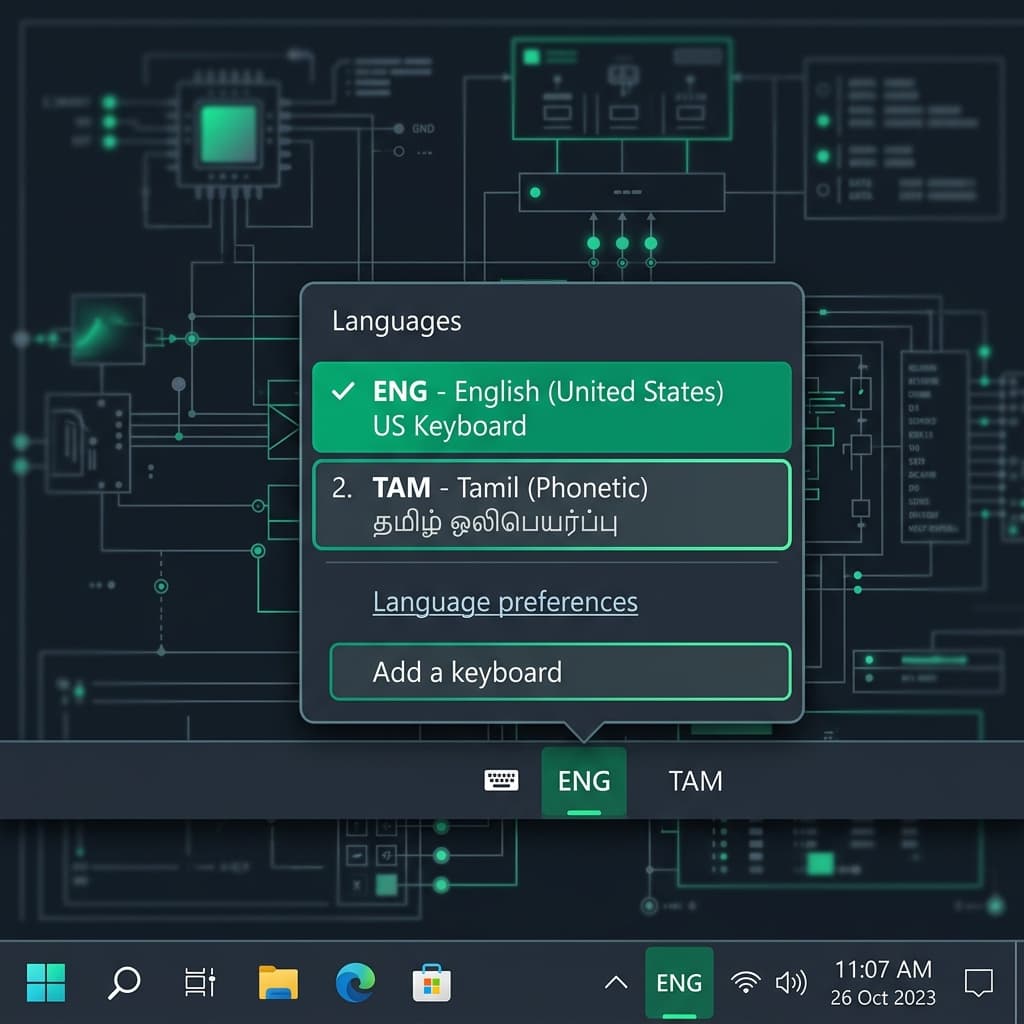
Why Use Windows 10 Native Tamil Keyboards?
Windows 10 introduced native multilingual IME support, removing the reliance on legacy third-party tools like Azhagi, NHM Writer, or KeyMagic. With native Windows 10 language support, every keystroke outputs compliant UTF-8 Unicode text. This means any Tamil content you type in Microsoft Word, Excel, Outlook, or web browsers can be copied and read on iPhones, Android phones, Mac computers, and tablets without requiring specialized fonts.
Windows 10 provides two main Tamil input modes:
- Tamil Phonetic: Typing English characters generates corresponding Tamil sounds (e.g., typing "thamizh" produces "தமிழ்"). This is the easiest layout for bilingual users.
- Tamil 99 Layout: The official touch-typing layout where physical keys are mapped directly to Tamil characters according to ergonomic research.
Detailed Windows 10 Setup Instructions
- Open Windows Settings: Click the Start button at the bottom-left corner and click the gear icon, or press Win + I.
- Access Time & Language: Click on Time & Language in the main settings grid.
- Select Language Section: Click Language from the left-hand navigation menu.
- Add Preferred Language: Under the Preferred languages heading, click + Add a language.
- Choose Tamil (India): Type Tamil into the search box, select Tamil (India), and click Next.
- Install Typing Features: Ensure Basic typing is checked, then click Install.
- Configure Specific Layout: Click on Tamil (India) in your language list, click Options, click + Add a keyboard under Keyboards, and select Tamil (Phonetic).
Windows 10 Quick Keyboard Shortcuts
Keep these quick keyboard combinations in mind while working across different software:
| Hotkey | Action | Description |
|---|---|---|
| Win + Spacebar | Switch Language | Shows a quick visual popup menu near the system tray |
| Alt + Shift | Toggle IME | Switches instantly between active active languages |
| Shift + Caps Lock | Letter Case Toggle | Toggles English capital letters when English layout is active |
Fixing Common Windows 10 Tamil Typing Issues
Issue: Words appear broken in Adobe Photoshop or Premiere Pro
Solution: In Photoshop/Illustrator, go to Preferences > Type and change the text engine to World-Ready Layout (or Middle Eastern / South Asian layout). Restart the app to render Tamil glyphs properly.
Issue: Windows 10 says "Basic Typing feature unavailable"
Solution: Ensure your computer is connected to the internet. If on a metered connection, open Settings > Network & Internet and turn off Set as metered connection so Windows can download the language files.
System Native Keyboard vs. Web Tool (TamilKeyboard.in)
While adding native language support to Windows 10 is ideal for desktop power users, web-based tools offer instant convenience without admin permissions or software downloads.
When on office computers, Cyber Cafes, or library workstations, simply open TamilKeyboard.in in Microsoft Edge or Google Chrome to type Tamil phonetically and copy-paste text directly into your documents.